
How to Reconcile a Bank Account in QuickBooks Online
Bank reconciliation compares the activity in QuickBooks with the statement for the same account and period. The deposits, withdrawals, and ending balance should each agree.
You need the statement for the month you're reconciling. If you're behind, reconcile the oldest month first and work forward.
This guide uses a fictional checking account with 312 transactions for August 2026.
1. Connect the bank feed
If your account already downloads transactions, skip to step two.
- Go to Accounting, then Bank transactions.
- Select Link account and search for your bank.
- Follow your bank's connection prompts. If the account is already set up in QuickBooks, link it to that existing account.
This connection is called a bank feed. After linking the account, review the downloaded activity for the statement period.
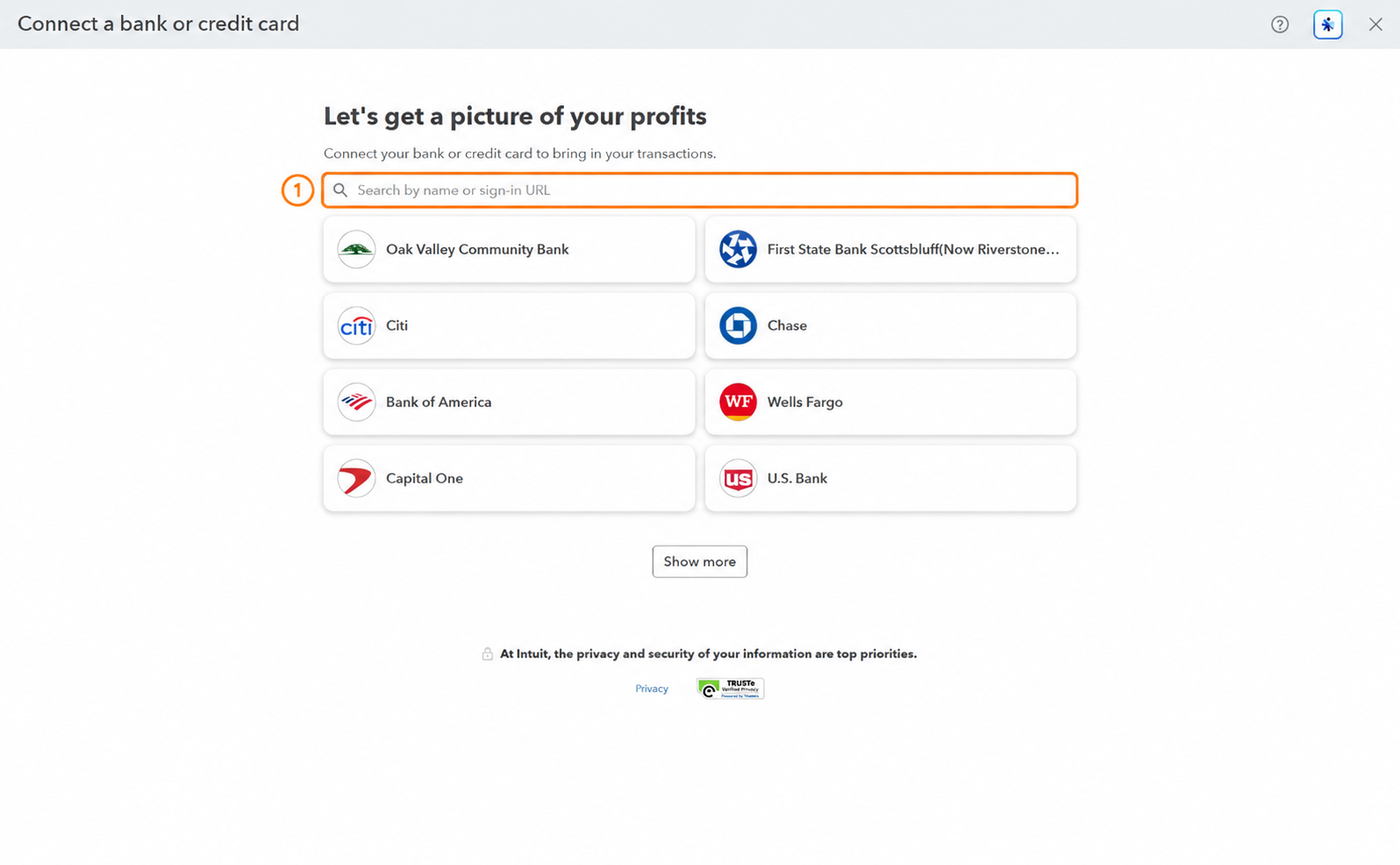
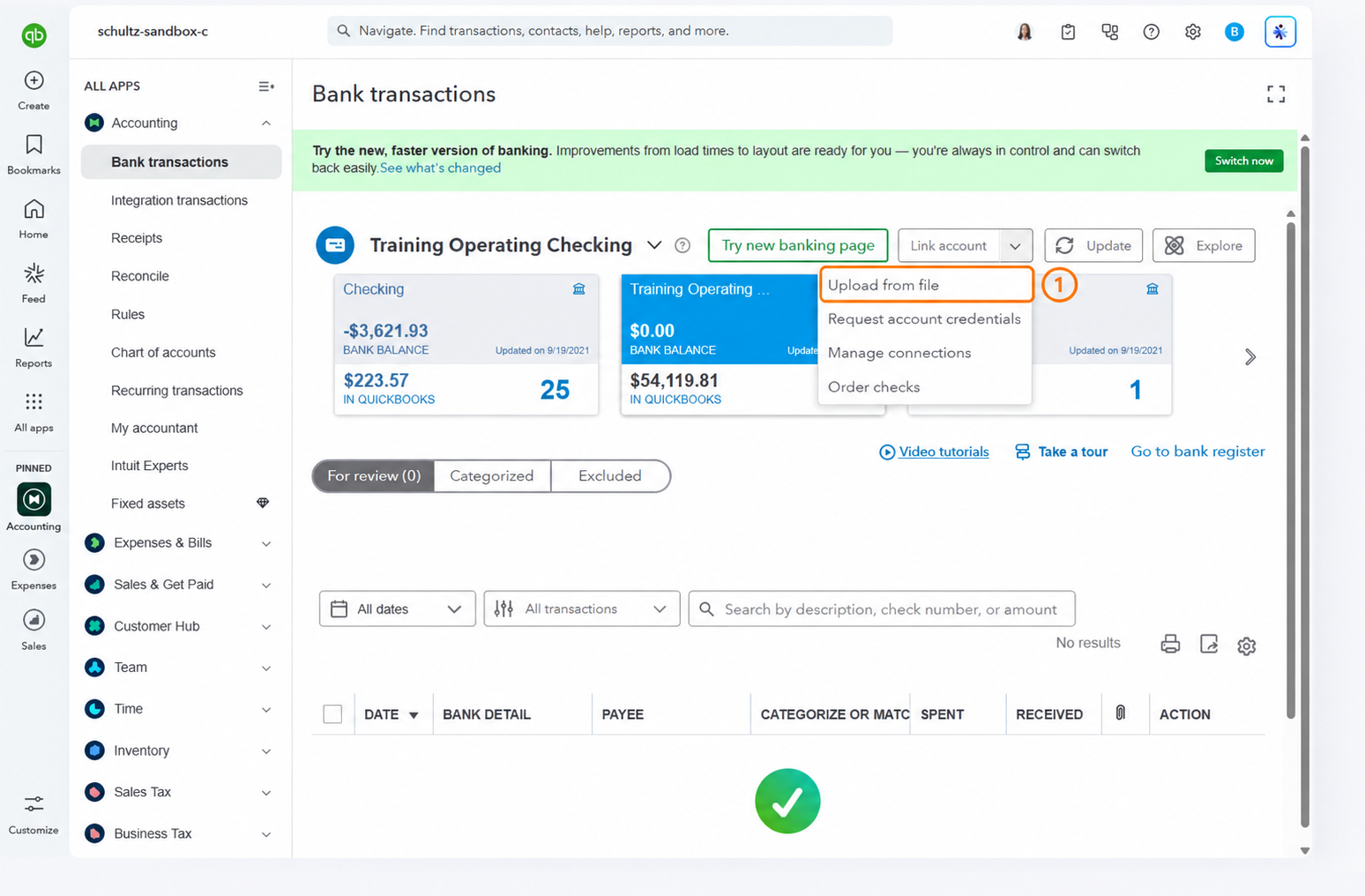
Transactions the feed did not download
Compare the downloaded date range with your statement. If transactions for the period did not download, check whether your bank offers an export that QuickBooks can import. Select the arrow next to Link account, then Upload from file. Check for transactions already recorded in QuickBooks before adding imported entries.
2. Finish the coding before you reconcile
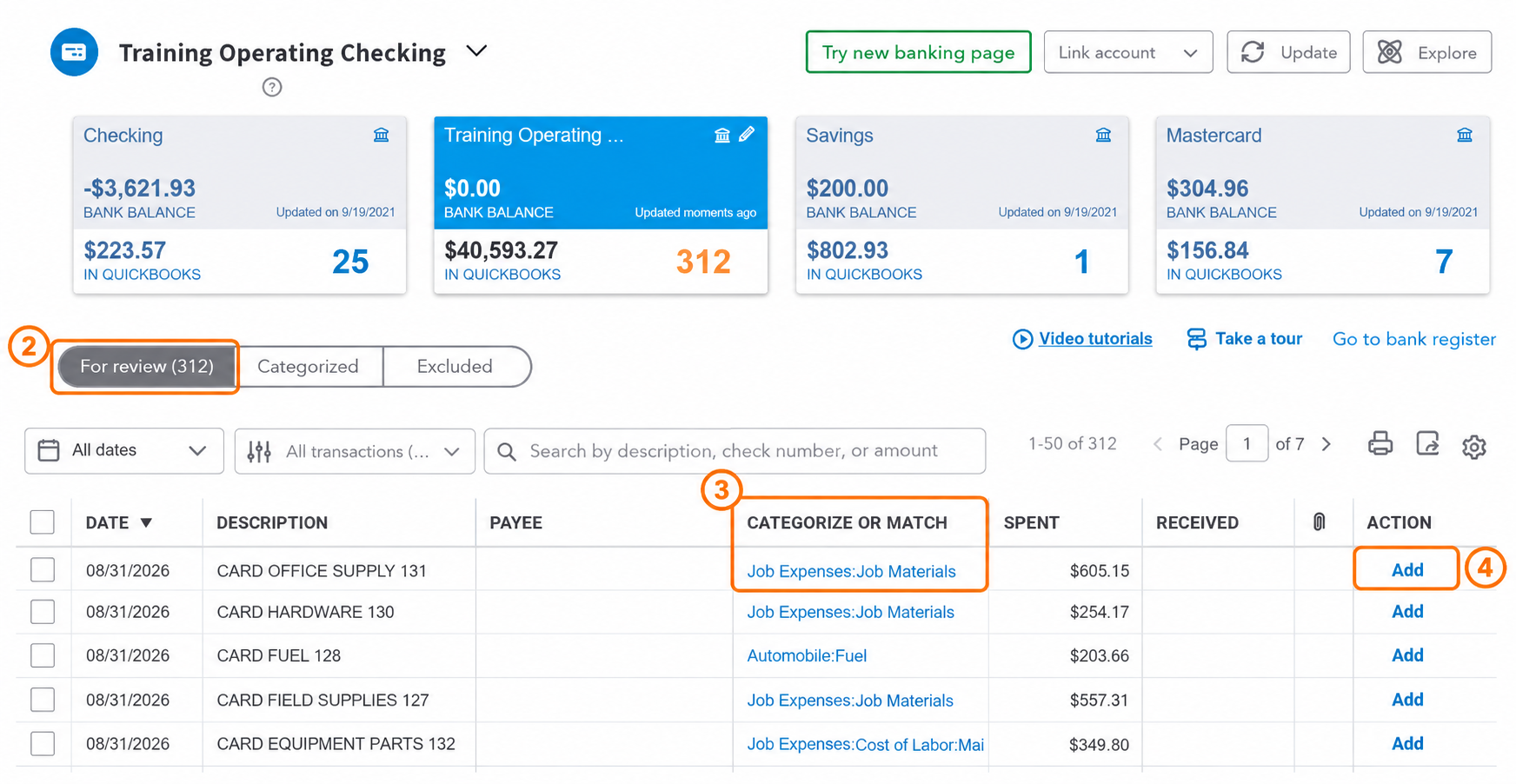
Coding means telling QuickBooks what each transaction was for, such as supplies, rent, or a payment against a loan. Open Bank transactions, pick your account, and go to For review.
Finish entering, matching, and categorizing the transactions for the statement period before you reconcile. A downloaded item may already have a corresponding entry in your books, so check before adding it. Review the categories on posted transactions as well.
| What you find | What to do |
|---|---|
| It is already in QuickBooks | Check the details, then select Match. |
| It has not been entered yet | Set the payee and the correct category, then select Add. |
| It is on the statement but did not download | Check whether it is already in QuickBooks. If not, enter it before you reconcile. |
| You do not recognize it | Find the receipt before you pick a category. Do not guess. |
Match connects a download to an entry already in your books. Add creates a new entry. Adding a transaction that is already recorded creates a duplicate.
Check each suggested category before accepting it. For a credit card payment, check that it reduces the card balance. If the card purchases are already entered, recording the payment as another expense counts them twice.
After reviewing the downloaded transactions, compare the account with your statement.
3. Start the reconciliation
The sample statement includes customer deposits, supplier payments, payroll, transfers, and fees.
| On the statement | Transactions | Amount |
|---|---|---|
| Beginning balance | $42,518.27 | |
| Deposits and other credits | 86 | $186,432.18 |
| Withdrawals and other debits | 226 | $172,905.64 |
| Ending balance, August 31, 2026 | $56,044.81 |
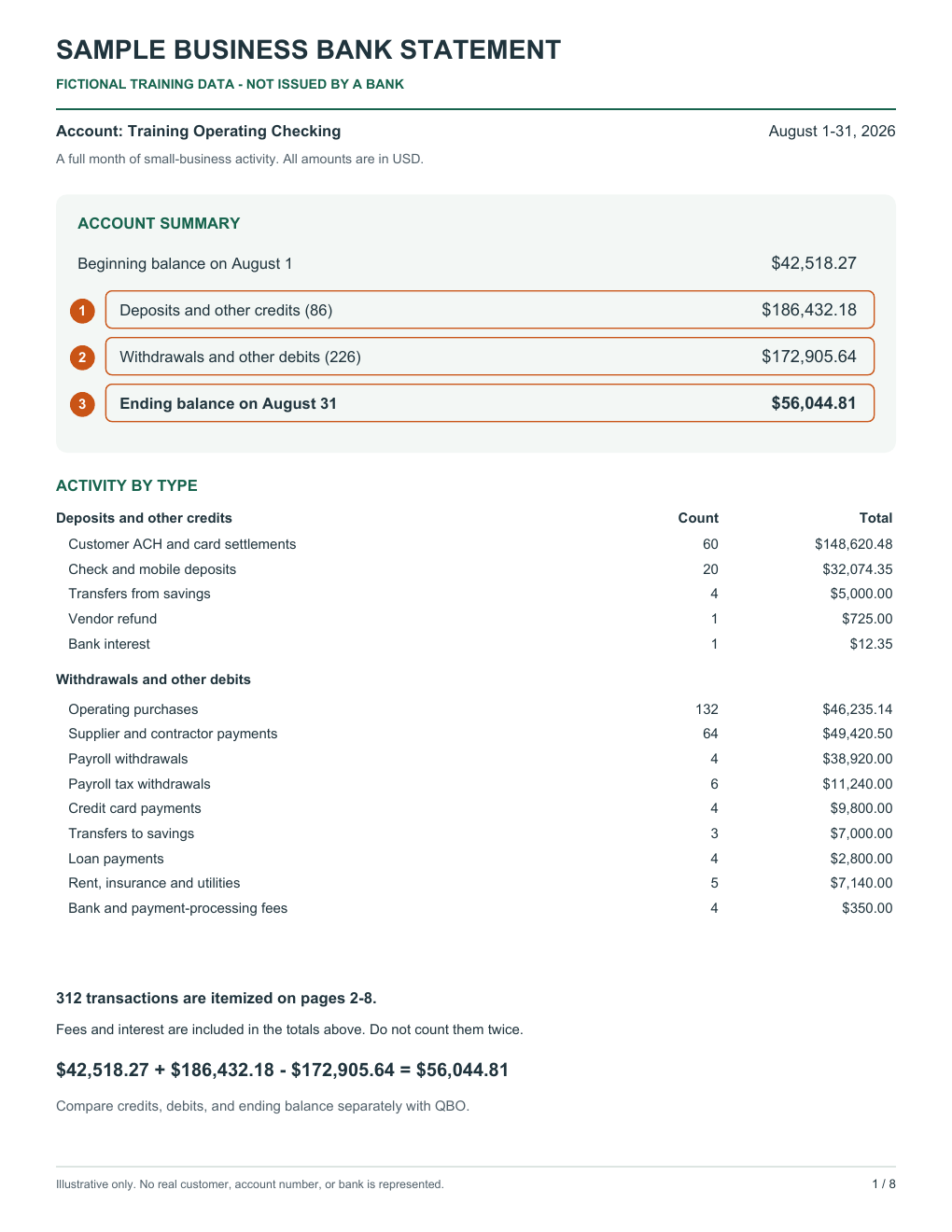
Download the sample statement with 312 transactions (PDF)
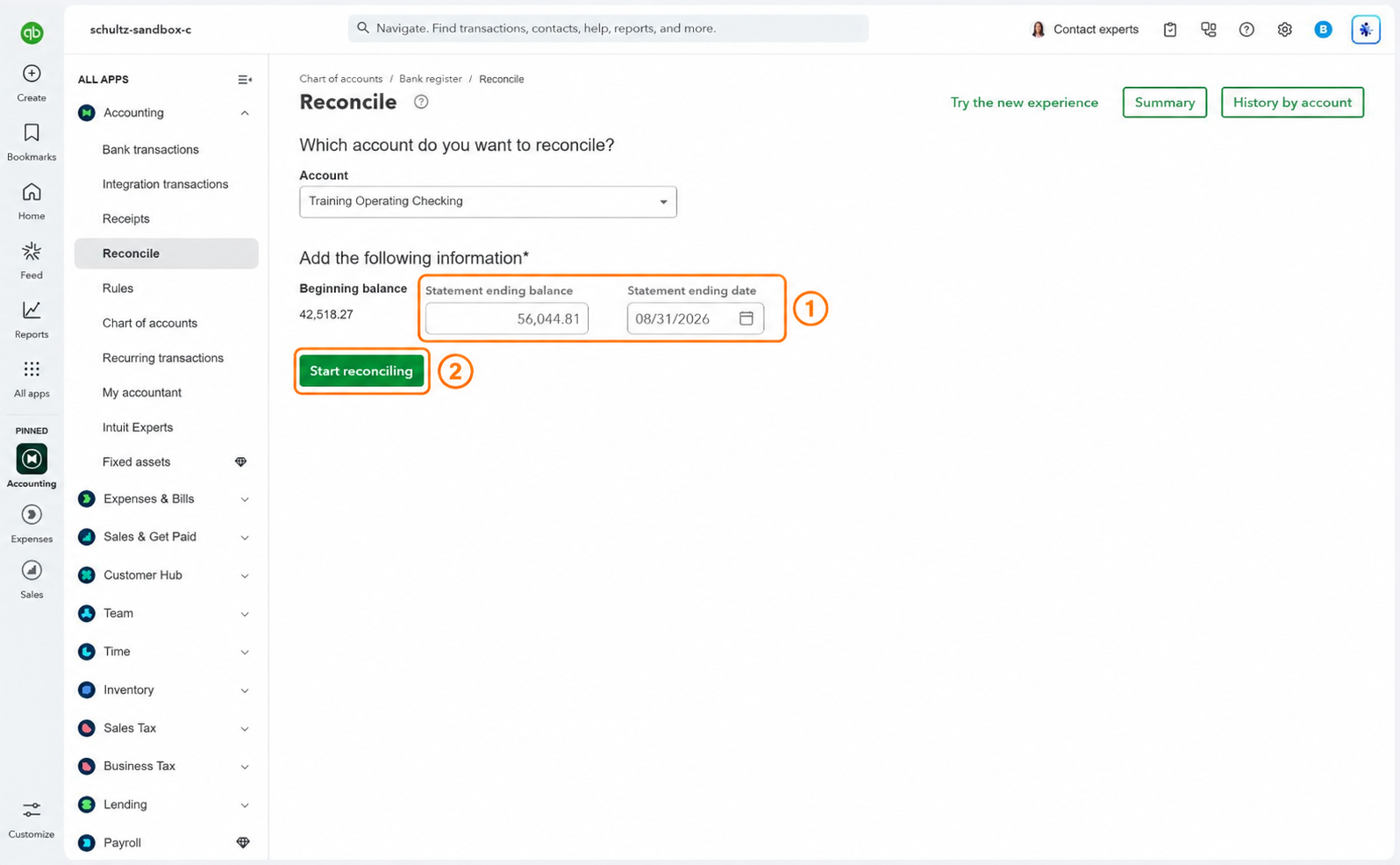
Go to Accounting, then Reconcile, and choose the account your statement is for.
If QuickBooks offers a new reconciliation experience, select No, use the existing experience to follow these screenshots.
QuickBooks shows a Beginning balance. Compare it to the beginning balance printed on your statement. In our example both are $42,518.27.
A beginning balance that does not match
Resolve a beginning-balance difference before continuing. Check that you've selected the correct account and statement period, then review the prior reconciliation and the account's opening balance. An entry changed or deleted after a prior reconciliation can affect the next beginning balance.
Once the beginning balances agree, enter the Statement ending balance and Statement ending date printed on your statement. The August example uses $56,044.81 and August 31, 2026. Select Start reconciling.
4. Check off what cleared
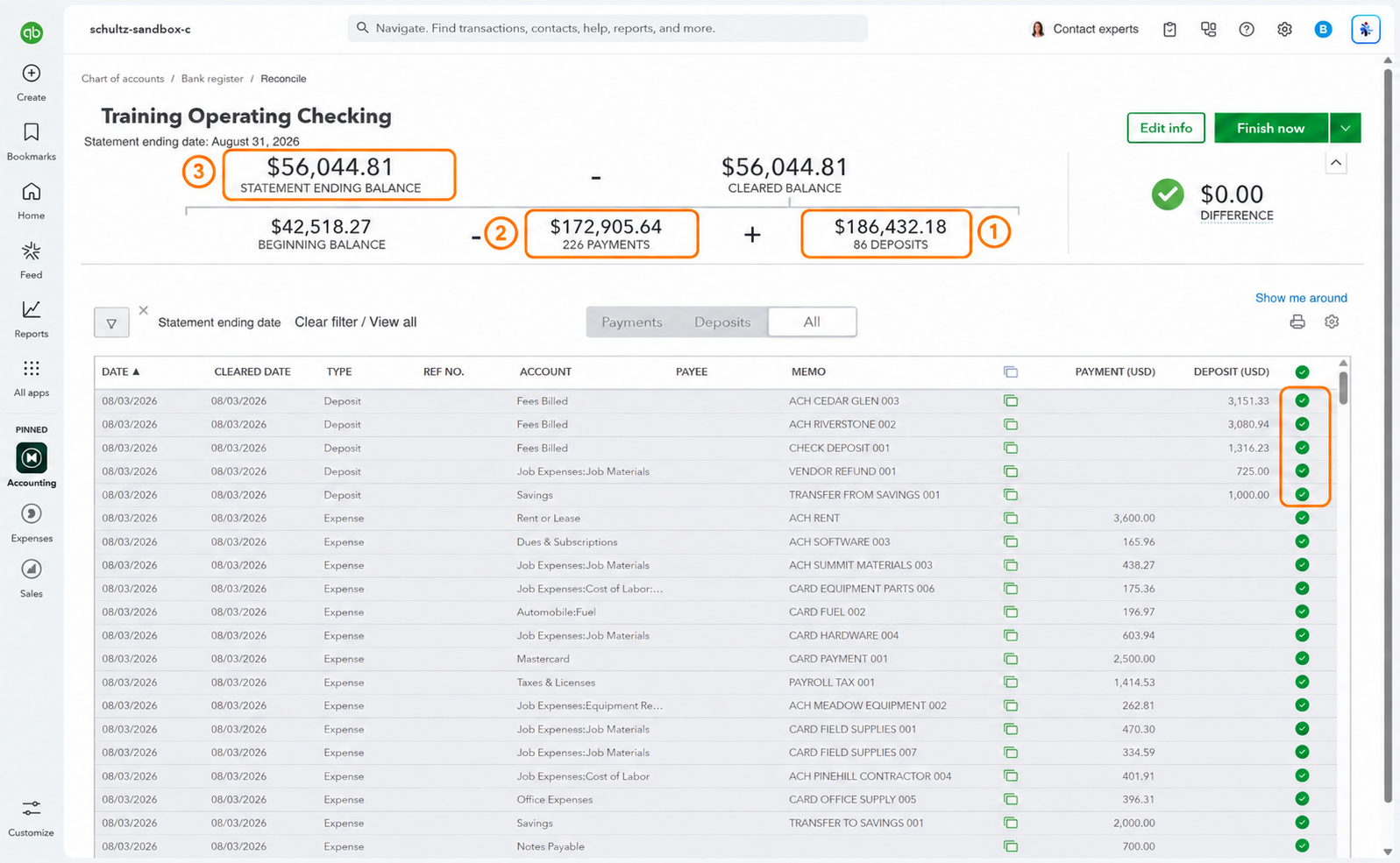
You are now marking which transactions in your books appear on the statement. Work the deposits first, then the payments, one statement page at a time.
- Find a statement transaction in the QuickBooks list.
- Compare its amount, date, and check or reference number. The bank posting date can differ from the date recorded in your books.
- Select the circle at the right of the row to mark it cleared.
Compare every selection with the statement, including entries already checked. If a deposit combines several customer payments, use its detail or the payment processor's report to confirm the amount.
Leave an entry unchecked if it does not appear on this statement, then review why it is outstanding. A valid check recorded before month-end may not have been cashed yet. In this example, four checks totaling $5,300 and two deposits totaling $3,375 were recorded by August 31 but had not cleared.
Keep transactions dated after the statement period out of this reconciliation. If an item appears on the statement but is dated later in your books, check the entry and its date. Investigate old, duplicate, or incorrectly recorded outstanding items.
If a statement transaction has not been recorded, select the arrow next to Finish now, then Save for later. Enter the transaction, return to Reconcile, and select Resume reconciling. Confirm your selections before continuing.
5. Compare all three totals
Compare each of these totals separately. On this checking-account screen, payments means money leaving the account, including transfers and loan payments as well as expenses.
| Check in QuickBooks | Match it to the statement | August example |
|---|---|---|
| Selected deposits | Total deposits and credits | $186,432.18 |
| Selected payments | Total withdrawals and debits | $172,905.64 |
| Cleared balance | Ending balance | $56,044.81 |
Suppose a $1,250 customer deposit and a $1,250 supplier payment are both left unchecked.
| Check | Selected in QuickBooks | Does it match? |
|---|---|---|
| Deposits | $185,182.18 | No, $1,250 short |
| Payments | $171,655.64 | No, $1,250 short |
| Cleared balance | $56,044.81 | Yes |
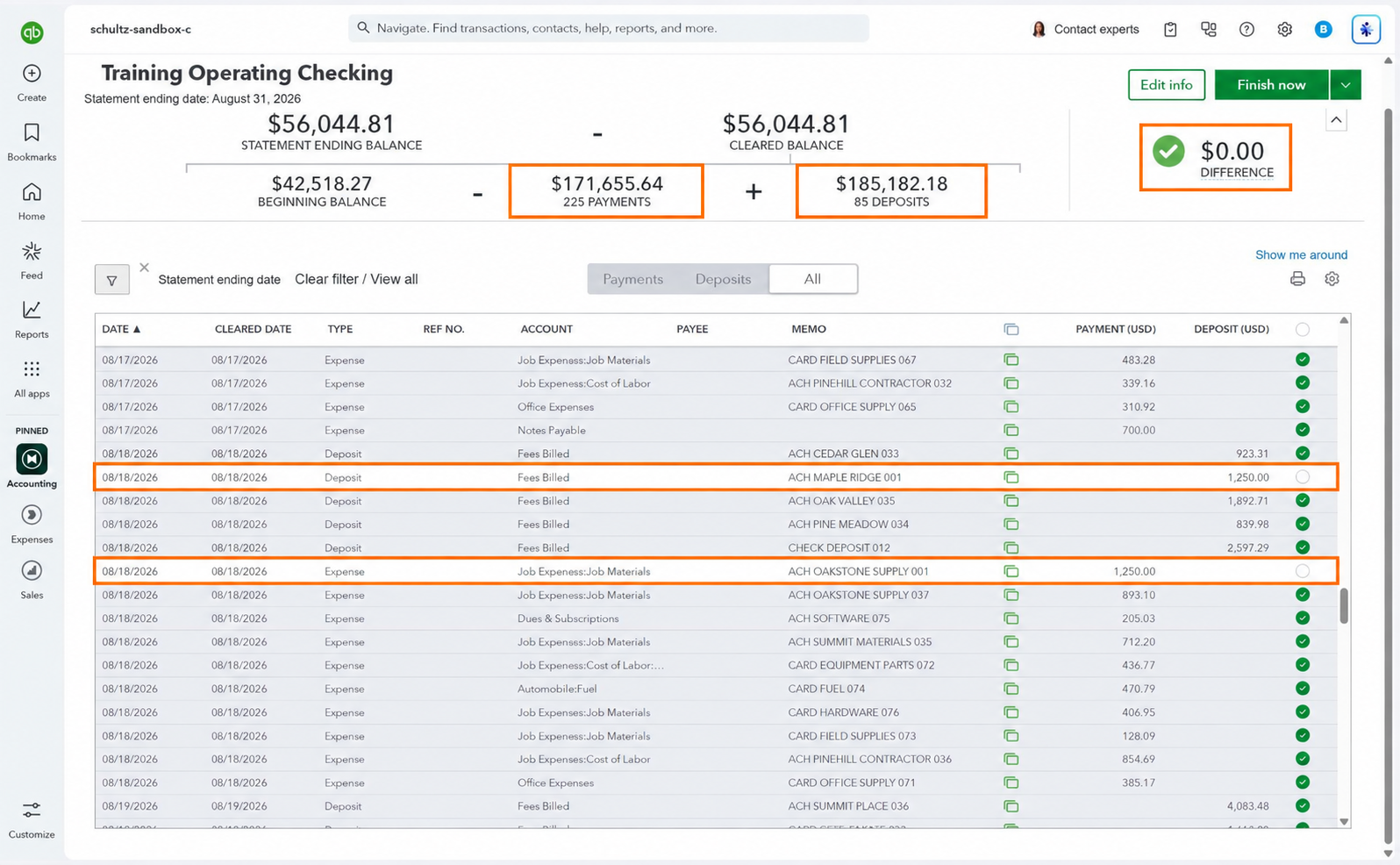
The two unchecked transactions offset each other, leaving a $0.00 Difference. Deposits and payments are each $1,250 short. Comparing both totals identifies this pair of omissions.
If your statement includes transaction counts, use them as another check. This example has one QuickBooks entry for each statement line: 86 deposits and 226 payments. Your counts may differ if several entries make up one bank deposit or payment. Trace those entries to the amount on the statement.
Include bank fees and interest when comparing totals. Check how the statement groups them so you count each item once. Matching the totals does not replace checking the individual transactions.
6. Find and correct differences
| What you are seeing | Check this first |
|---|---|
| A transaction is missing | The account and date filters, then whether it was ever entered. |
| A total is too high | Duplicates, or items checked that are not on this statement. |
| A total is too low | Unchecked entries, bank fees, or interest you have not recorded. |
Find the cause of a difference before finishing. Record identified fees, interest, or supported corrections. Avoid an unexplained adjustment made only to bring Difference to $0.00.
7. Finish and save the report
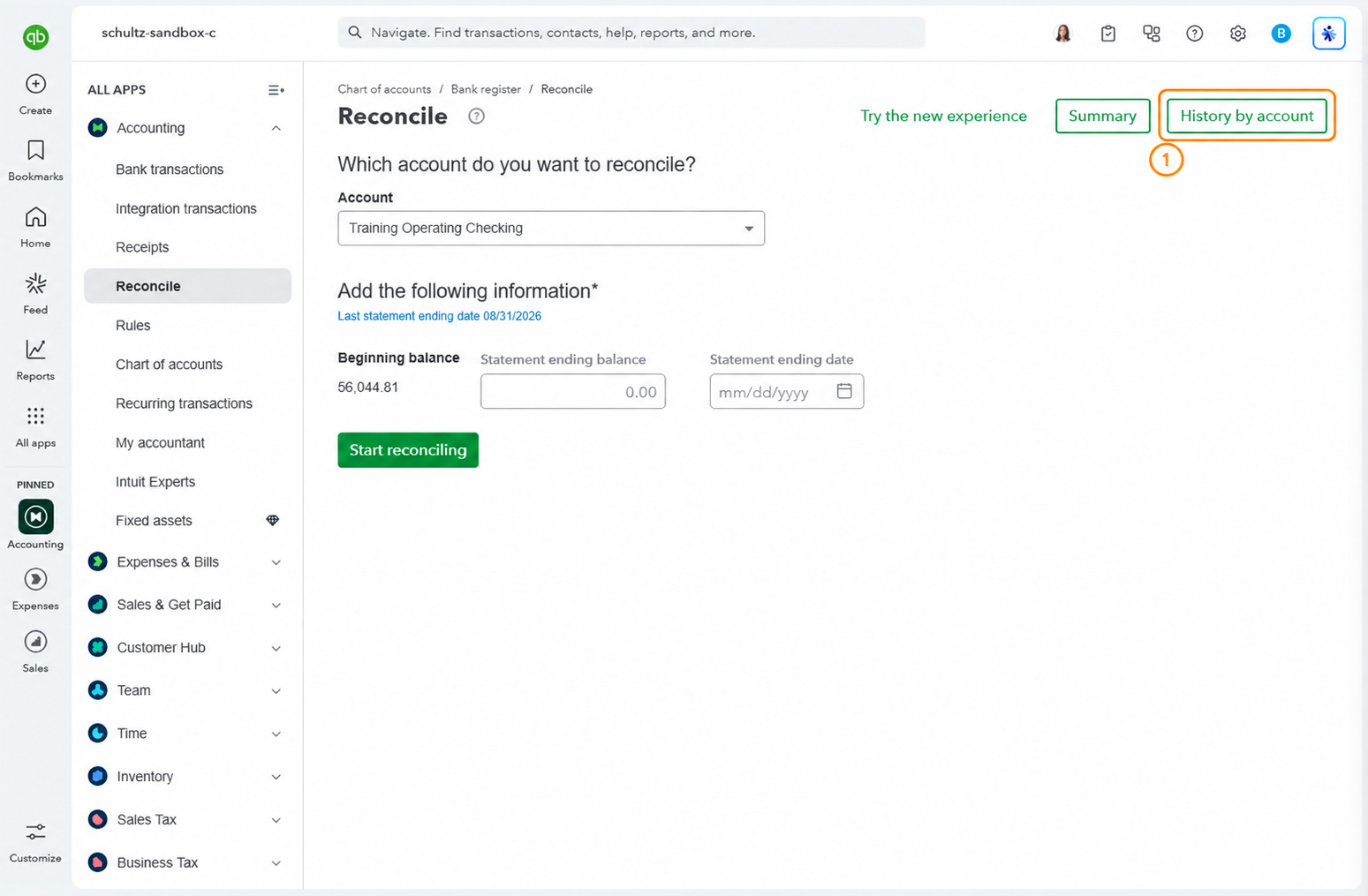
When the three totals agree, Difference is $0.00, and you have reviewed the outstanding items, select Finish now. Save the reconciliation report with the statement. You can find it again under Reconcile, then History by account.
Outstanding checks and deposits
Your book balance can differ from the statement ending balance because of transactions recorded by month-end that have not cleared. The August example has $3,375 in deposits in transit and $5,300 in outstanding checks.
| August example | Amount |
|---|---|
| Statement ending balance | $56,044.81 |
| Add deposits that had not cleared | $3,375.00 |
| Less checks that had not been cashed | ($5,300.00) |
| Balance in your books | $54,119.81 |
With those valid outstanding items, $54,119.81 is the August 31 book balance for this checking account. Your balance sheet may also include cash in other accounts.
Review the categories and financial statements
Reconciliation helps find missing, duplicate, and incorrectly recorded bank transactions. It does not establish that every business transaction is recorded or categorized correctly. A supplier payment in the wrong expense category can agree with the bank statement.
Review your Profit and Loss and Balance Sheet after reconciling. Check unusual balances and categories, and keep the supporting records for your entries. Proof that a payment cleared does not establish that it is a deductible business expense.
Reconcile every business bank and credit card account each month.